

APK Not Installing is a common issue Android users face when downloading an APK file. Downloading an APK file gives Android users the freedom to install apps and games outside the official app stores.
However, sometimes users face a frustrating problem where the APK file downloads successfully but refuses to install.
The message may appear as “App Not Installed”, “Unable to Install APK“, or “There Was a Problem Parsing the Package.” This issue is common when installing gaming APKs, modified apps, older application versions, or apps downloaded from third-party websites.
The good news is that most APK installation problems can be fixed with simple troubleshooting steps. In this guide, we will explain the most common reasons behind the APK Not Installing problem and share 15 practical solutions that work on most Android devices.
Why is My APK Not Installing on Android?
Before applying solutions, it is important to understand why Android blocks APK installation.
The most common reasons include:
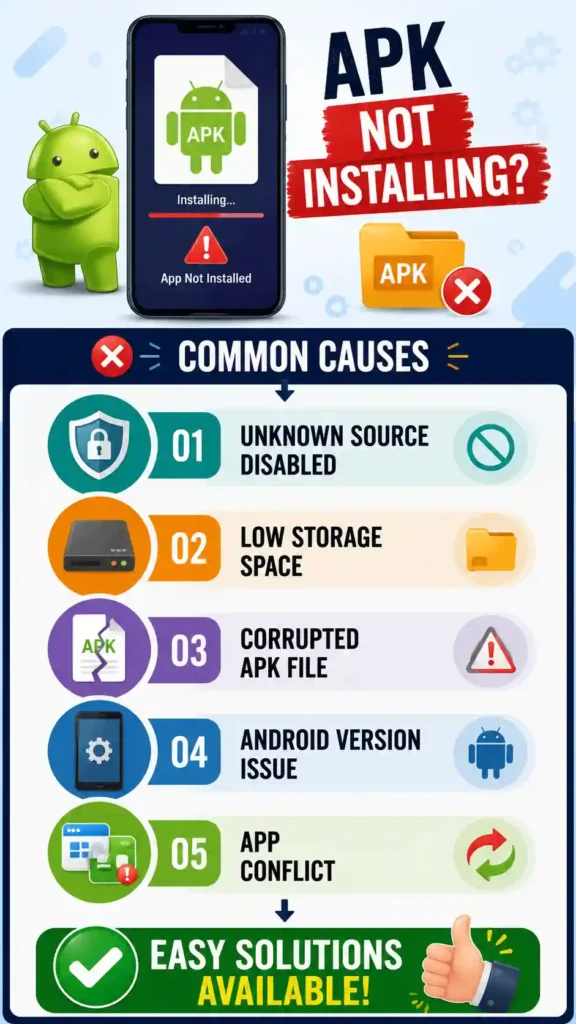
- Unknown app installation permission is disabled
- Insufficient phone storage
- Corrupted APK file
- APK version is not compatible with your Android version
- Existing app conflict
- Incorrect APK file format
- Security restrictions
- Damaged download process
Android checks several conditions before installing an application. If any requirement fails, the installation process stops automatically.
15 Solutions to Fix APK Not Installing Error
1. Enable Install Unknown Apps Permission
The most common reason behind APK Not Installing is blocked installation permission.
Android does not allow apps downloaded from browsers or file managers to install automatically. You need to allow permission manually.
Follow these Steps:
- Open Settings
- Go to Security or Privacy
- Select Install Unknown Apps
- Choose your browser or file manager
- Enable Allow from this source
After enabling the permission, try installing the APK again.
2. Check Available Storage Space
A lack of storage is another common reason why APK files fail to install.
Even if an APK file is only 100MB, Android may require additional space during installation.
To Check Storage
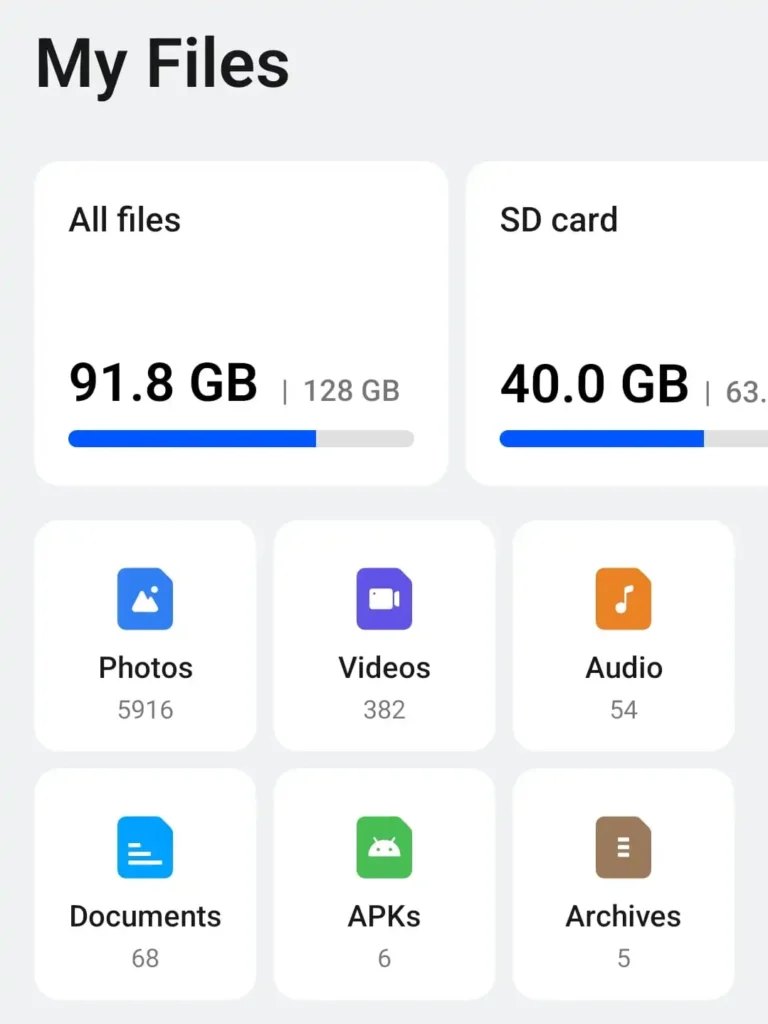
- Open My File
- You will see storage (All files+SD Card if you have one)
- Check available space
Delete unnecessary videos, duplicate files, or unused applications before trying again.
Keeping enough free storage helps Android complete the installation process properly.
3. Download the APK File Again
Sometimes the APK file becomes damaged during downloading.
This can happen because of:
- Poor internet connection
- Interrupted download
- Server problems
- Browser errors
Delete the existing APK file and download it again from a reliable source.
A fresh APK download often solves installation failures immediately.
4. Check Android Version Compatibility
Every APK has minimum Android requirements.
For example:
- An APK designed for Android 13 may not work on Android 9
- New games may require updated system libraries
How to check Android Version:
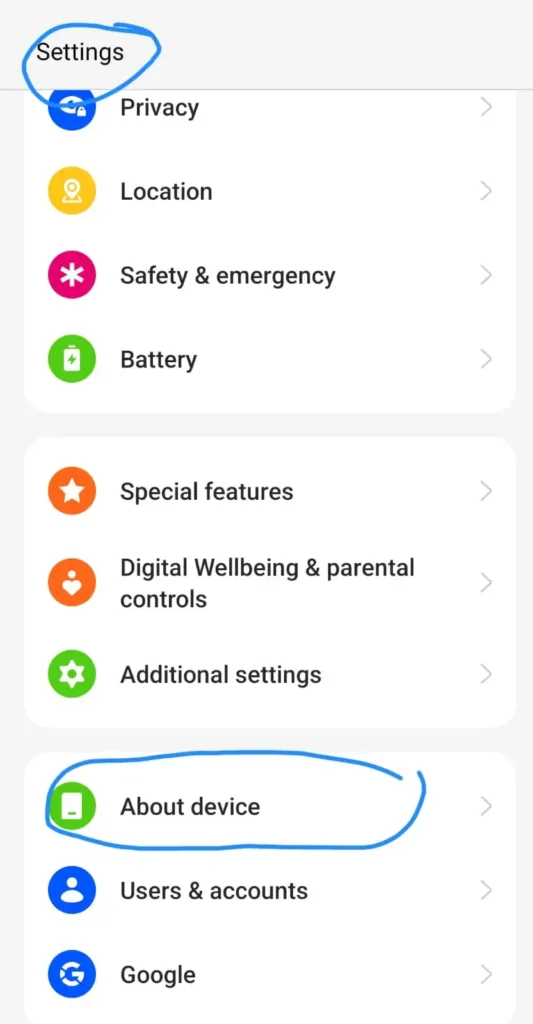
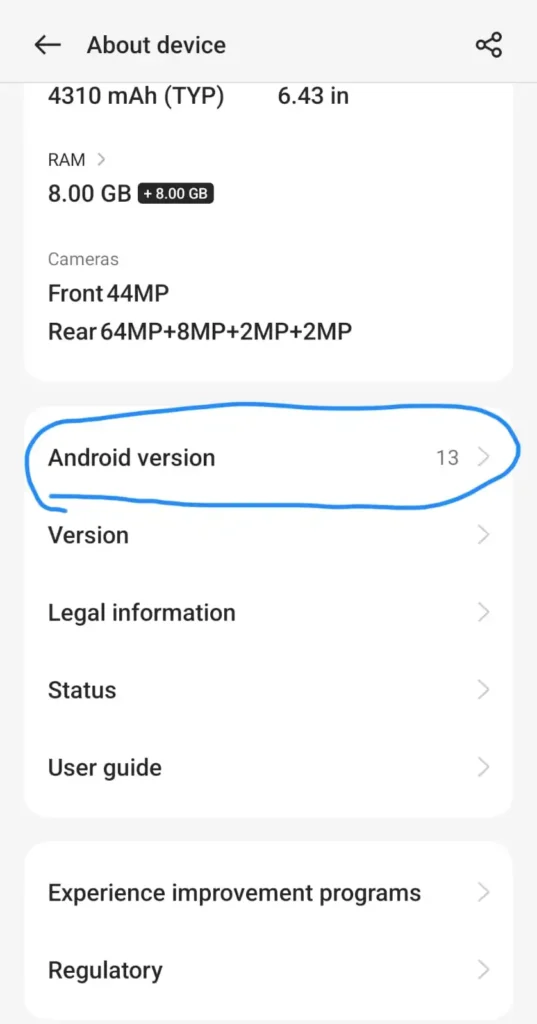
- Open Settings
- Tap “About device“
- Scroll down, and you will see the “Android version“
- You will see the version.
Check the APK information before installation and confirm that your phone supports the required Android version.
5. Restart Your Android Device
A simple restart can solve many temporary system problems, like APK Not Installing.
Restarting your phone clears:
- Background processes
- Temporary installation error
- Package installer issues.
After restarting, locate the APK file and try installing again.
6. Uninstall the Previous Version of the App
If you already have an older version installed, Android may block the new APK installation.
This usually happens when:
- The APK has a different signature
- The new version conflicts with the existing application
Solution:
- Back up your app data
- Uninstall the old application
- Restart your device
- Install the new APK
Signature conflicts are a known reason for APK update failures.
7. Check APK File Extension
Make sure the file you downloaded is actually an APK file, as this can cause an APK Not Installing.
Sometimes websites provide:
- ZIP files
- XAPK files
- APK bundles
A normal Android installer cannot always install these formats directly.
For XAPK files, you may need a compatible installer application.
You need a compatible XAPK Installer.
The recommended option is
XAPK Installer
- Dedicated XAPK installer
- Detects XAPK files from storage
- Installs APK+OBB automatically
8. Clear Package Installer Cache
The Android Package Installer manages app installation. If its cache becomes corrupted, APK installation may fail.
Steps:
- Open Settings
- Go to Apps
- Select System Apps
- Find Package Installer
- Clear Cache
Restart your phone and test the installation again.
9. Move APK File to Internal Storage
Installing an APK directly from an SD card may sometimes create problems.
Try this:
- Move the APK file to internal storage
- Open File Manager
- Tap the APK file
- Start Installation
Internal storage usually provides better installation reliability for APK Not Installing.
10. Disable Battery Saver Temporarily
Some aggressive battery-saving modes restrict background activities.
Before installing an APK:
- Disable Battery Saver
- Close running applications
- Try installation again
This is especially useful on Xiaomi, Oppo, Vivo, and other customized Android devices.
11. Check Google Play Protect Settings
Google Play Protect may block some APK installations because they come from outside official stores.
You can review security settings:
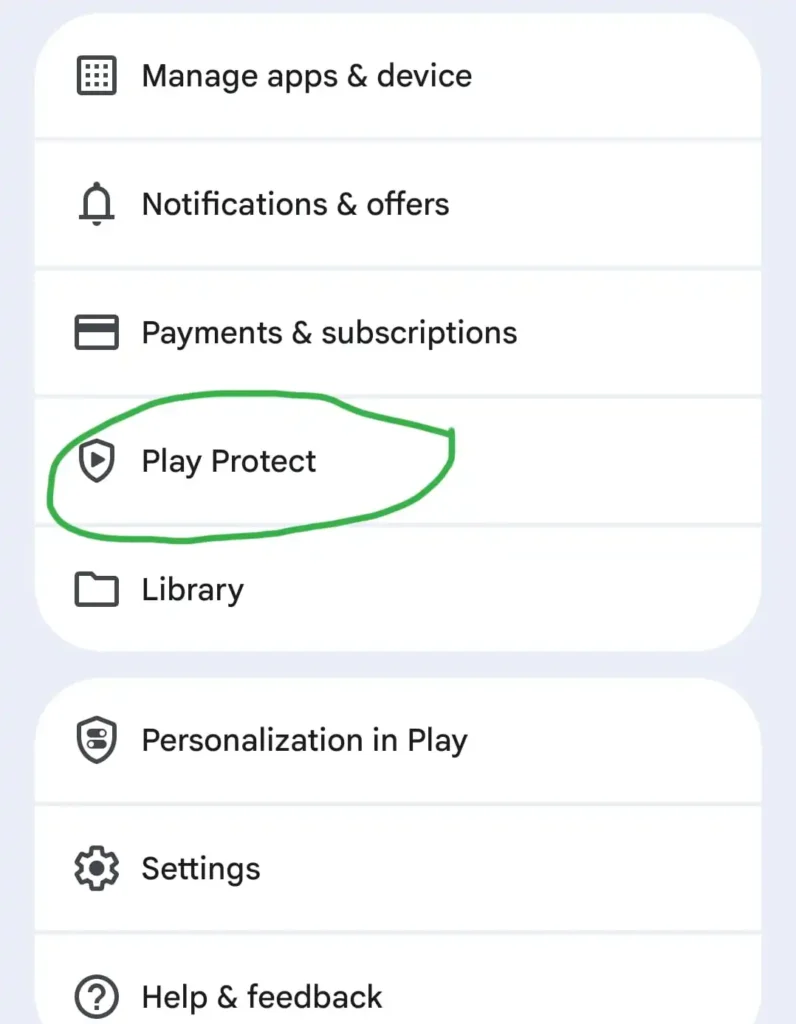
- Open Play Store
- Tap Profile
- Select Play Protect
- Review blocked applications
Only install APK files from trusted sources to reduce security risks.
12. Fix “There Was a Problem Parsing the Package”
This APK Not Installing error usually appears because Android cannot read the APK package correctly.
Possible reasons:
- Corrupted APK
- Unsupported Android version
- Incorrect APK architecture
Solutions:
- Download the APK again
- Install a compatible version
- Update Android software
13. Check APK Architecture (ARM or ARM64)
Modern Android devices use different processor architectures.
Common types:
- ARM
- ARM64
- x86
Installing the wrong APK version may result in installation failure and APK Not Installing.
Always download the version compatible with your device.
14. Update Android System Components
Some applications require updated Android components.
Make sure these are updated:
- Android System WebView
- Google Play Services
- Android Security Updates
Older system components may prevent newer applications from working correctly.
15. Factory Reset (Last Option)
If every APK fails to install and shows the same error APK Not Installing the problem may be related to deeper system issues.
Before factory resetting:
- Backup photos
- Save important files
- Sync contacts
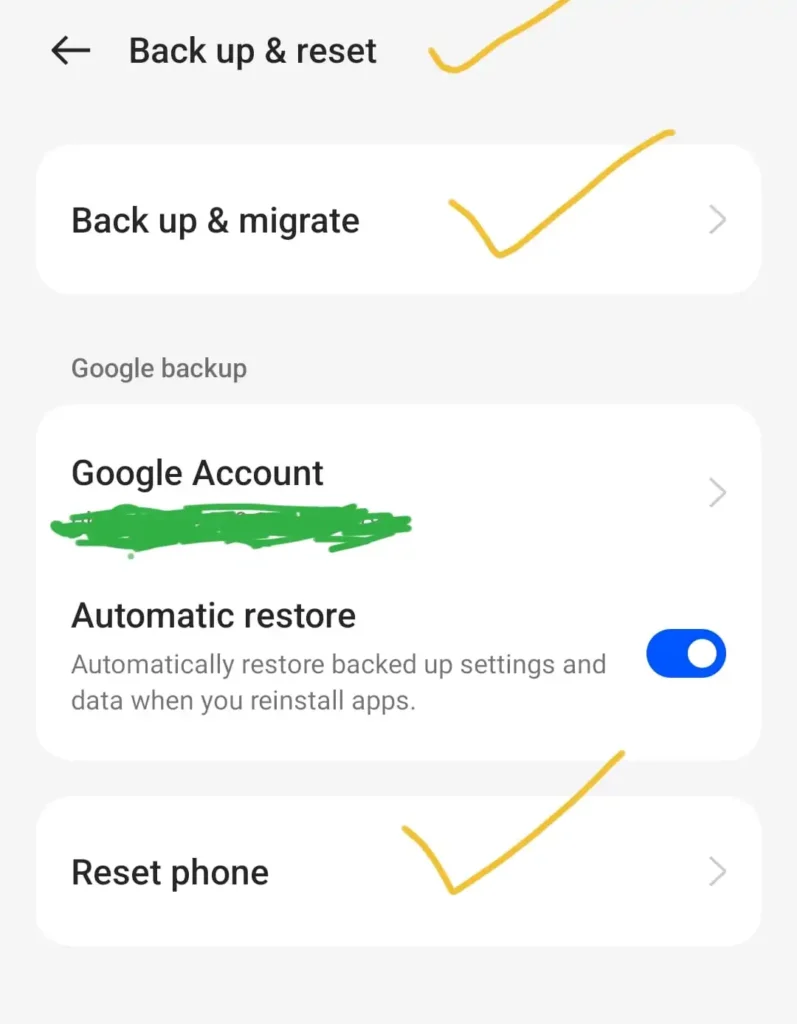
How To?
- Open settings
- Go to additional settings
- Scroll down; you will see “Backup and reset”
A factory reset should only be considered after trying all other solutions.
APK Not Installing Error: Quick Troubleshooting Table
| Problem | Reason | Solution |
|---|---|---|
| APK blocked | Unknown source disabled | Enable installation permission |
| App not installed | Storage issue | Free up space |
| Parse error | Damaged APK | Download again |
| Update failed | Old version conflict | Remove the previous app |
| APK crashes | Compatibility issue | Install the correct version |
| Installation stops | Security restriction | Check permissions |
How to Avoid APK Installation Problems in the Future
Follow these tips:
- Download APK files from trusted websites
- Check Android compatibility before downloading
- Keep enough storage space available
- Avoid modified APK files from unknown sources
- Keep your Android system updated
- Scan suspicious files before installation
Final Words
The APK Not Installing problem is frustrating, but in most cases, it can be fixed within a few minutes. Start with simple solutions like enabling installation permission, checking storage, and downloading the APK again.
If the problem continues, check compatibility, remove previous versions, and verify that you are using the correct APK format.
By following these 15 solutions, you can successfully install most APK files on Android devices in 2026.
Frequently Asked Questions (FAQs)
1. Why is my APK not installing even though the file downloaded?
The APK may not install because of insufficient storage, disabled permissions, corrupted files, or Android compatibility problems.
2. How do I fix APK installation failure errors?
Enable unknown app installation, check storage, download the APK again, and make sure the file supports your Android version.
3. Can old APK files be installed on new Android phones?
Sometimes yes, but some older applications may not support newer Android security requirements.
4. Is APK installation safe?
APK files should only be downloaded from trusted sources. Unknown APK files may contain harmful software.